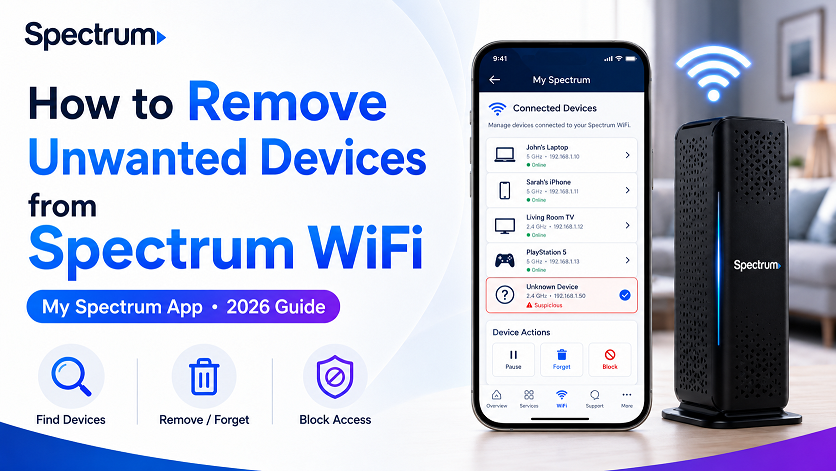
How to Remove Unwanted Devices from Spectrum WiFi (My Spectrum App) — 2026 Guide
Spectrum doesn’t have a single “remove” or “block” button — the main tool is Pause. Open the My Spectrum app, go to Services → Manage Your Devices, swipe left on the device you want to stop, and select Pause → “Until I Unpause.” This immediately disconnects the device and keeps it off until you manually unpause it. For an unknown or unauthorized device, pause it first, then change your WiFi password — pausing alone doesn’t erase a device’s stored credentials, so a password change is the only way to guarantee it can’t simply reconnect later.
If you’ve spent any time in the My Spectrum app looking for a “Remove Device” or “Delete Device” button, you may have come away confused — because, unlike some other ISP apps, Spectrum doesn’t really have one. What it has instead is a Pause/Unpause system, plus a few related tools (Device Groups, Pause Schedules, and Security Shield) that, used correctly, accomplish almost everything “removing a device” is usually meant to achieve.
This guide walks through what’s actually available, how to use each tool, and — most importantly — what to do when you want a device gone for good, not just temporarily paused.
Spectrum’s Device Management Options (And What’s Missing)
Here’s the honest landscape of what the My Spectrum app offers for controlling devices on your Advanced WiFi network:
| Tool | What It Does | Permanent? |
|---|---|---|
| Pause / Unpause | Immediately disconnects a device from your WiFi; can be set to “Until I Unpause” or on a schedule | No — reversible anytime, and device reconnects automatically once unpaused |
| Device Groups | Pause/unpause multiple devices together as one group | No — same reversibility as individual Pause |
| Pause Schedules | Automatically pauses and unpauses a device or group on a recurring schedule | No — designed to be recurring, not permanent |
| Rename Device | Gives a device a custom nickname in the app (cosmetic only) | N/A — doesn’t affect access |
| Security Shield | Network-wide protection that blocks known malicious sites and cyberattacks | Ongoing protection — not a per-device block |
| Change WiFi Password | Disconnects every device; only devices with the new password can reconnect | Yes — the only fully permanent option |
If You’ve Used an Xfinity Network Before
Xfinity’s xFi app offers three distinct device actions — Pause, Forget, and Block (see our Xfinity device removal guide). Spectrum’s model is simpler: there’s really just Pause, plus the password-change “reset everything” option. If you came looking for a Spectrum equivalent of “Block,” the closest thing is pausing a device “Until I Unpause” combined with a password change for anything you want permanently gone.
How to See All Devices on Your Network
Open the My Spectrum App and Go to Services
Tap the Services tab at the bottom of the app.
Select “Manage Your Devices” Under Your Spectrum Network
The first time you open this section, you may need to tap “Manage Devices” before a device list appears.
Review the Connected, Not Connected, and Paused Lists
Devices are grouped into three categories: currently online (Connected), currently offline (Not Connected), and devices you’ve paused (Paused). An unfamiliar device could appear in either the Connected or Not Connected list depending on whether it’s actively using your network right now.
How to Pause/Remove a Device (Step by Step)
Pausing immediately cuts off a device’s connection to your home WiFi. Choosing “Until I Unpause” keeps it disconnected indefinitely — this is the closest thing Spectrum offers to “removing” a device’s access without a password change.
Open the Devices on Your Network Screen
From Services → Manage Your Devices, select either the Connected or Not Connected list, depending on where the device appears.
Swipe Left on the Device
Swiping left on a device in the list reveals a Pause option.
Select “Pause” and Confirm
Tap Pause, then confirm on the next screen. You’ll be offered the choice between pausing “Until I Unpause” (indefinite) or setting up a Pause Schedule (recurring). For removing an unwanted device, choose “Until I Unpause.”
Alternative: Pause from Device Details
You can also tap into a device’s Device Details screen and use the blue or green “Pause Device” button there — useful if swiping isn’t working well on your phone.
To Unpause Later
Go to the Paused list, swipe left on the device, and confirm Unpause — or use the green “Unpause Device” button on its Device Details screen. The device reconnects automatically without needing to re-enter a password.
The Real Fix for Unknown Devices
If you’ve spotted a device on your network you don’t recognize, pausing it is the right first move — it’s instant and stops the device’s access right away. But it’s important to understand what pausing does not do: it doesn’t make the device forget your WiFi password, and it doesn’t prevent the device from reconnecting if the pause is ever lifted.
For Permanent Peace of Mind, Change Your Password
The only action that guarantees an unrecognized device cannot reconnect — regardless of pause status — is changing your WiFi network password. This disconnects every device on your network at once, and only devices given the new password can rejoin. See our step-by-step guide to changing your Spectrum WiFi name and password for the full process, including what to expect afterward for your other devices.
A practical sequence for dealing with an unknown device:
- Pause it immediately using the steps above — this stops its access in seconds.
- Change your WiFi password — this is the permanent fix and disconnects everything, including the unknown device, for good.
- Reconnect your own devices with the new password.
- Confirm Security Shield is active (included with Advanced WiFi) for ongoing protection against malicious sites and cyberattacks at the network level.
Haven’t Changed Your WiFi Password Recently?
Our step-by-step guide covers the My Spectrum app, the spectrum.net website, and what to do if you’re using your own router instead of Advanced WiFi.
Using Device Groups to Manage Multiple Devices
If you regularly need to pause several devices together — all of a child’s devices, all guest devices, or every smart home gadget at once — creating a Device Group saves you from pausing each one individually.
Go to Equipment → Devices → Groups
From the Equipment tab, select Devices, then the Groups tab at the top of the screen.
Tap “Create Group” and Name It
Give the group a descriptive name — for example, “Kids’ Devices” or “Guest Devices.”
Select Devices to Add
Tap each device you want in the group; a check mark appears next to selected devices. Tap again to remove a device from the group.
Save — Then Pause or Schedule the Whole Group
Once saved, you can tap “Pause Group” or “Unpause Group” to control every device in it at once, or apply a single Pause Schedule to the entire group.
Setting Up Pause Schedules
Pause Schedules automatically pause and unpause a device or group on a recurring basis — most commonly used for bedtime routines or homework time.
Select a Device or Group
From Manage Your Devices (or the Groups tab), select the device or group you want to schedule.
Tap “Create Pause Schedule”
Give the schedule a name, such as “School Night Bedtime.”
Select Days and Times
Tap the circles for each day of the week you want this schedule active — selected days turn blue. Set the start and end times for the pause window.
Save
The schedule runs automatically from then on. Devices will lose WiFi access during the scheduled window and reconnect automatically once it ends, with no action needed from you.
Renaming Devices for Easier Identification
Before you can confidently pause the right device, it helps to know which entry is which. Spectrum lets you give any device a custom nickname:
- From the Devices screen, select the device you want to rename.
- Select “Edit Device Name.”
- Enter a nickname (for example, “Mom’s iPhone” or “Living Room Smart TV”) and select Save.
Note that this nickname only appears within the My Spectrum app — it doesn’t change the device’s actual network name (hostname), so other tools or your router’s admin page may still show the original technical name.
Troubleshooting Common Issues
| Problem | Likely Cause | Fix |
|---|---|---|
| Tapping a device opens a different device’s details | Known display glitch reported in Spectrum Community forums | Force-close and reopen the app, refresh the device list, or update to the latest app version; try spectrum.net if it persists |
| Paused device still shows as “Connected” briefly | List hasn’t refreshed yet | Pull down to refresh; the device should move to the Paused list within a minute |
| Can’t find the device you want to pause | It may be listed under “Not Connected” if currently idle | Check both the Connected and Not Connected lists — a device doesn’t have to be actively online to be paused |
| Unsure if a device is actually gone after pausing | Pause doesn’t remove stored credentials | For certainty, follow up with a WiFi password change (see our dedicated guide) |
| Device Groups tab isn’t visible | Feature location varies by app version | Check under the Equipment tab → Devices → Groups; update the app if the tab is missing entirely |
Frequently Asked Questions
Does Spectrum have a “remove device” or “block device” button like other ISPs?
Not exactly. Unlike some other ISP apps that offer separate Pause, Forget, and Block options, the My Spectrum app’s primary device control is Pause/Unpause. Pausing a device “Until I Unpause” immediately disconnects it and keeps it off your network indefinitely until you manually unpause it, which is the closest equivalent to removing or blocking a device. There isn’t a separate option to permanently forget a device’s identity from your list or block its hardware address outright — for that level of certainty, changing your WiFi password is the more reliable step.
How do I pause a device on Spectrum WiFi?
Open the My Spectrum app, go to Services, select Manage Your Devices under Your Spectrum Network, and choose either the Connected or Not Connected device list. Swipe left on the device you want to pause and select Pause to confirm. Choose “Until I Unpause” for an indefinite pause, or set up a Pause Schedule for automatic, recurring pauses. You can also pause a device from its Device Details screen using the Pause Device button.
Will pausing a device stop it from ever reconnecting?
Pausing stops a device from using your internet connection for as long as the pause is active, but it does not erase the device’s stored WiFi password. If the pause is ever lifted — by you, or in theory by anyone else with account access — the device will reconnect automatically without needing the password again. For a device you want permanently gone regardless of pause status, the only fully reliable method is changing your WiFi network password, which forces every device, paused or not, to need new credentials to connect again.
How do I permanently get an unknown device off my Spectrum WiFi?
Pause the unknown device immediately to cut off its access right away. Then change your WiFi network name and password through the My Spectrum app or at spectrum.net — this disconnects every device on your network, and only devices given the new credentials can reconnect. This combination (immediate pause, followed by a password change) is the most reliable way to ensure an unrecognized device cannot return, since Spectrum doesn’t offer a standalone permanent block for individual devices.
Can I pause multiple devices at once on Spectrum?
Yes, using Device Groups. In the My Spectrum app, go to the Equipment tab, select Devices, then the Groups tab, and create a group by selecting multiple devices. Once a group exists, you can pause or unpause every device in it simultaneously, or apply a single Pause Schedule to the whole group — useful for pausing all of a child’s devices, or all guest devices, at once.
Does pausing a device affect its cellular data or VPN?
No. A pause applied through the My Spectrum app only affects that device’s connection to your home WiFi network. If the device has its own cellular data plan, or connects to a different WiFi network entirely (a neighbor’s, a coffee shop’s, etc.), the pause has no effect on those connections. The pause is specific to your Spectrum home network only.
Why does the My Spectrum app open the wrong device when I tap on one?
This has been reported as an occasional display glitch in the Spectrum Community forums, where tapping one device in the list opens the details screen for a different device. If this happens, try force-closing and reopening the app, pulling down to refresh the device list before tapping, or updating to the latest app version. If the issue persists, making the change at spectrum.net on a computer is a reliable workaround while the app issue is resolved.